The short answer
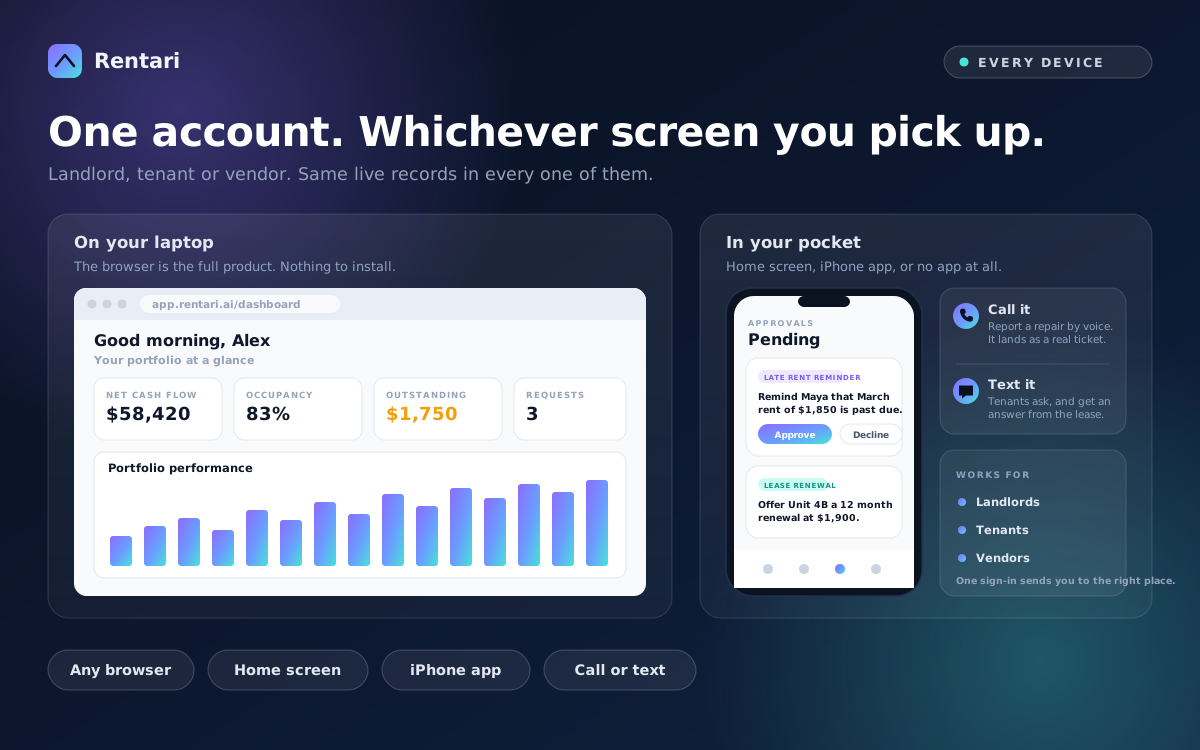
Start from Rentari’s official website or app links, sign in with the intended account and check that you are in the correct workspace before changing a record.
On this page
Start from an official destination
Use Rentari's website and the current Apps page to find available app or browser options. Check the publisher and destination before installing anything. Do not rely on an old screenshot or an unrelated search advertisement as proof that an app is official.
Availability can differ by platform and account. If an option is not offered, use the supported browser experience or ask support rather than downloading a package from an unfamiliar source.
Check the account and workspace
Sign in using the account associated with your rental role. Landlord and tenant tasks are different: an owner reviews a portfolio, while a resident sees the lease and actions shared with that account. Confirm the selected property and unit before acting.
If an invitation is missing or an expected lease is absent, verify the invited email and contact the manager or support. Creating another account can complicate the records rather than fix the invitation.
Worked example: a repair reported from a phone
A resident opens the available maintenance workflow, confirms the rental and describes the exact location and symptom. They attach a useful photo only when safe, review the access preference and submit.
They then check the recorded request and its status. A sent form or a screen transition alone is not proof that a contractor has been assigned. Immediate danger should go to the relevant emergency service rather than waiting for an app response.
Review downloads and notifications
After exporting a report or opening a document, check its title, period and property. The phone's file viewer may display an earlier download with a similar name. Protect downloaded leases and financial records on shared devices.
Review notification settings offered by the app and operating system, but keep the agreed emergency and payment process clear. Enabling a notification does not guarantee that every message will be received or read.
Get help with a precise description
Record the device, browser or app version, page and action attempted. Provide the exact error and a redacted screenshot if useful. Never send a password, verification code or full bank credential.
Use the role-specific Help Center for current steps. If the workspace differs from an older guide, follow the current availability message and contact support rather than forcing an unsupported path.
Written and maintained by the Rentari team. Examples explain a decision; they are not customer results. Found an error or an unclear step? Send a correction with this page's address and the detail to review.
Your next step
Get started with Rentari