The short answer
Plan and record an accurate rental walkthrough, protect privacy, and share a tour link that prospective renters can open.
On this page
Choose a recorded or live format
A recorded walkthrough gives prospective renters a reusable view of the actual unit. A scheduled live video call can answer questions in real time, but needs a confirmed time, a working connection, and a plan for who may appear on camera. Either format can help someone understand a home before visiting; it does not verify every condition or replace an in-person or accessible viewing when one is requested.
Offer consistent property information and explain how viewers can ask questions or arrange a suitable next step.
Prepare the unit and protect privacy
Confirm you are authorized to enter and record. If the rental is occupied, coordinate access with the resident and get appropriate permission before filming. Keep residents and neighboring homes out of frame. Remove mail, personal documents, photographs, keys, access codes, medication, and valuables from view. Show the unit honestly; do not hide a material condition or suggest that a feature is included when it is not.
Plan a room-by-room route from the entrance that follows the unit's layout, then show useful closets, appliances, windows, and outdoor areas. Include only the property and unit being advertised.
Record a steady, honest walkthrough
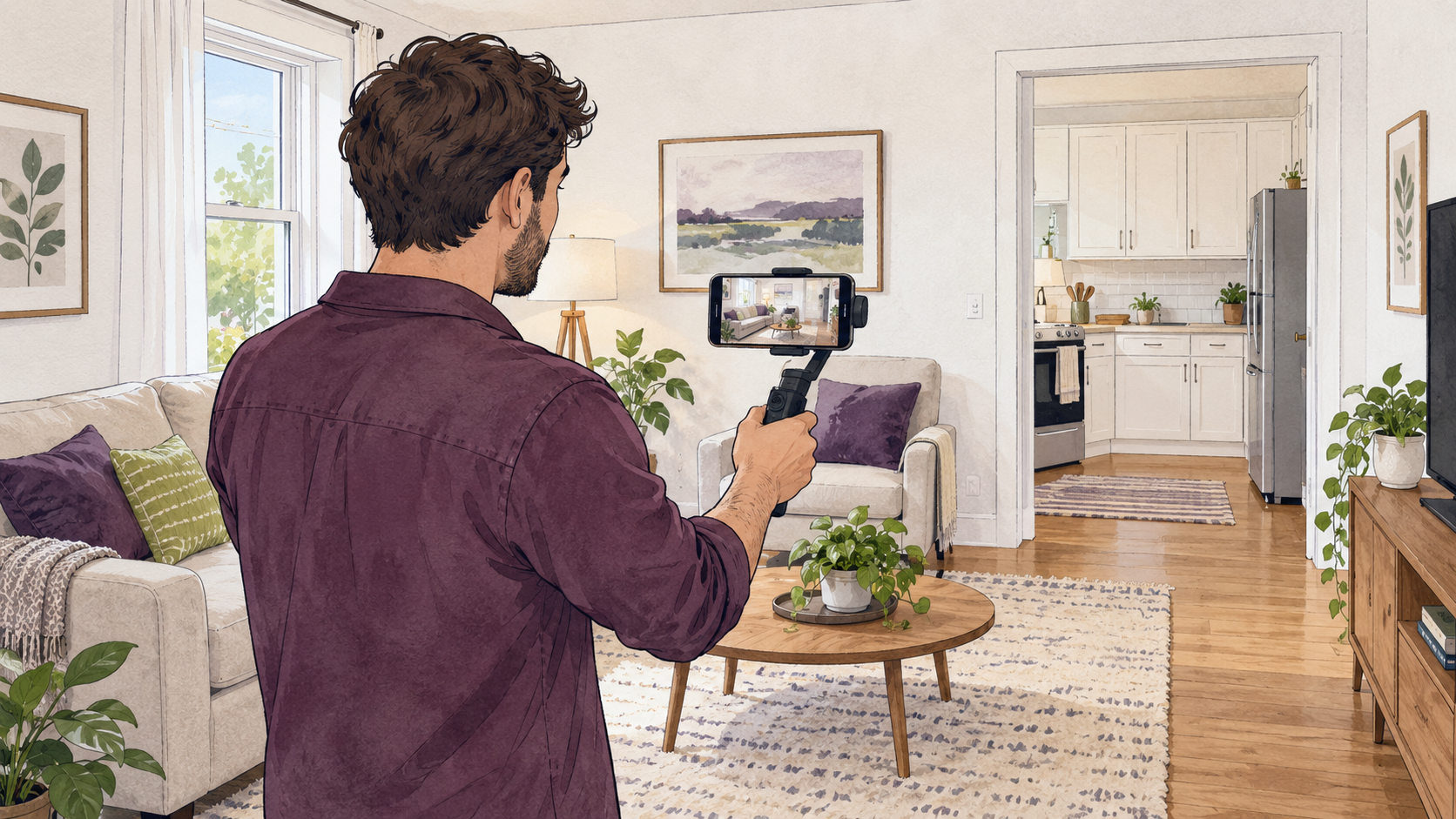
A phone camera is usually enough. Clean its lens and record a short test to check framing, light, focus, and sound. Use a steady pace, pause in each room, and avoid rapid pans, excessive zoom, or extreme wide-angle settings that distort the space. Follow the host and listing's format requirements.
Use brief, factual narration if it helps explain what viewers see. Keep the audio clear, and share only music or other material you own or have permission to use. If the furniture, fixtures, condition, or availability changes, update the recording or label older footage clearly.
Make the tour useful without relying on sound
Add accurate captions or a written description for key information. Describe the route, verified room or feature details, stairs, and any difference between the footage and the current unit. Keep the tour consistent with the listing photos and written terms.
Consider accessible ways to view and understand the home. A video does not replace reviewing an accommodation request or offering an appropriate alternative. Do not record a resident, visitor, or conversation without clear notice, appropriate permission, and compliance with applicable requirements.
Host the recording and add its link
Choose a host whose sharing, privacy, accessibility, and removal settings suit the tour. Rentari's listing setup accepts YouTube, public Vimeo, and Matterport tour links; its Photos field does not accept direct video-file uploads. Rentari saves the tour link but does not host the recording. Review the supported tour formats and renter-access guidance.
Open the shared link while signed out of the host, on a phone, and with the sound off. Confirm that playback works, captions or text are available, and the correct unit appears without private or access information. After saving the URL in Rentari's Photos step, check the published listing. Saving a tour link does not publish a draft listing or update a separate copy you posted manually. Follow the Rentari steps for adding and checking a tour link.
Plan a live remote showing
Confirm the time, unit, connection, and areas you can show. Tell participants who will join and whether the call will be recorded; do not record without appropriate permission and required notice. Keep the camera on the rental and stop if a resident or private information enters the frame. Have a backup way to answer questions or arrange another viewing if the connection fails.
Use a consistent, factual description and follow-up process for every prospect. A live call can support a showing, but it does not decide who qualifies or replace the written rental criteria.
Your next-step checklist
- Get permission and clear private details from the frame.
- Show the actual unit in a logical, steady route.
- Describe the home accurately with captions or text.
- Test the shared link and published listing on a phone.
- Offer a clear way to ask questions or view the home.
Keep learning
Common questions
Do I need a special camera to record a rental tour?
Usually not. Start with a phone camera, clean the lens, make a short test, and check that the room, movement, light, and sound are clear.
Can I upload a video file directly to a Rentari listing?
No. Rentari's Photos step accepts YouTube, public Vimeo, and Matterport tour links, not a direct video-file upload. Add the supported link and then check it on the published listing.
Does a virtual tour replace an in-person showing?
No. A recording or live call can help someone preview the home, but it does not verify every condition or replace an in-person or accessible viewing when one is requested.
Archive years group longstanding rental topics. This Rentari guide was published on 2026-10-05.
Written and maintained by the Rentari team. Examples explain a decision; they are not customer results. Found an error or an unclear step? Send a correction with this page's address and the detail to review.
Your next step
Advertise on 25+ listing sites